By Mayank Bhardwaj · August 20, 2026 · 2 min read
How to set an auto-changing wallpaper on macOS (3 ways)
macOS can rotate wallpapers on a timer, but it can't update one. The difference matters — here's every method, from built-in settings to wallpaper software.
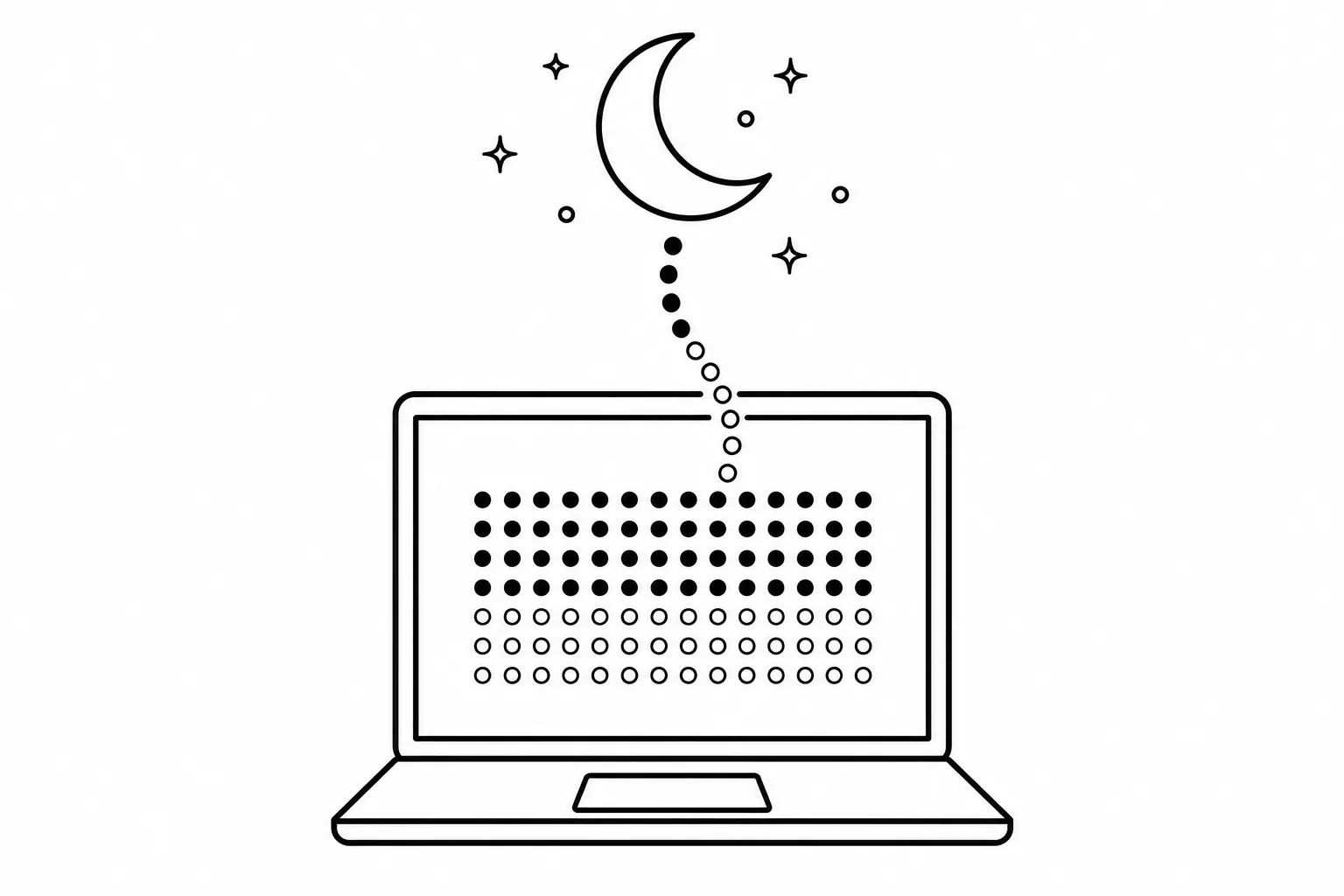
There are two different wishes hiding in “auto-changing wallpaper,” and macOS only grants one of them out of the box.
Wish one: variety. Different picture every hour. macOS does this natively.
Wish two: freshness. The same wallpaper, kept current — today’s date, today’s progress, today’s dot. macOS cannot do this at all. For that you need software that generates the image. Here are all three methods, honestly.
Method 1: The built-in rotator (variety only)
System Settings → Wallpaper → add a folder → check “Rotate” and pick a frequency from every 5 seconds to every day. Drop in a folder of images and macOS shuffles them.
Perfect for photography. Useless for information — every image in the folder was true the day it was made and drifts thereafter. A “days left in the year” wallpaper in that folder is wrong 364 days out of 365.
Method 2: Dynamic wallpapers (time of day, not date)
Apple’s Dynamic Desktop (the Catalina dune, the Sonoma hills) shifts with the sun — morning light, evening dusk. Beautiful, and still date-blind: it knows the hour, not the calendar. Third-party dynamic-wallpaper packs work the same way. Nothing in this category can tell you it’s week 34.
Method 3: Software that renders the wallpaper (freshness)
The only way a wallpaper can stay correct is if a program redraws it. This is a small genre: calendar-on-desktop utilities (which paint your meetings onto the wallpaper), and time-progress apps.
Count Your Weeks is the second kind. It renders your life, year, month or week as a dot calendar — at your display’s native resolution, in a light or dark theme that follows macOS — and repaints it at midnight and on wake. Set it once; it is never stale again. It even lets you put your own art behind the calendar with a matte finish, so method 3 doesn’t cost you the beauty that drew you to methods 1 and 2.
Which one should you use?
- Want rotating photos? Method 1, built in, free.
- Want ambient time-of-day light? Method 2.
- Want your wallpaper to know things — the date, the week, how much of the year is left? Method 3 is the only one that can.
The methods also stack: many people run Count Your Weeks on their main display and a photo rotation on the second one. Time on one screen, beauty on the other, maintenance on neither.
Free in the browser — or living on your Mac desktop, updated nightly.